
HD Video Downloader: MediaSave
Actionhouse GamesVideo Players & Editors
3.41.00 Reviews
- Version
- 1.0.3
- Installs
- 500.00K
- Age Rating
- Everyone
Screenshots
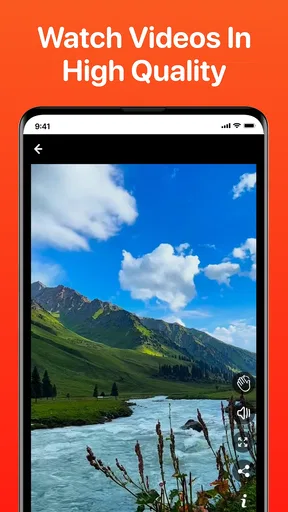
Our Review of HD Video Downloader: MediaSave
 Analysis by Appyee
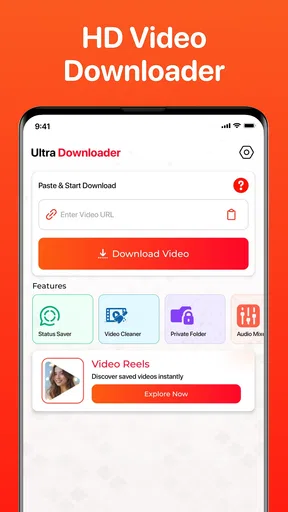
Downloading a video sounds simple until the file does not appear, the download stops halfway, or the saved clip is difficult to find later. That is the space where HD Video Downloader: MediaSave tries to help. It is a free media-saving app from Actionhouse Games, listed in the Video Players & Editors category, and its main appeal is a straightforward place to manage downloaded media rather than a complicated editing suite.
I approached it as the kind of tool someone might keep on a phone for occasional video saving: a clip for an offline trip, a reference video for work, or media that needs to be organized separately from a browser’s temporary downloads. The experience is more useful when I treat it as a focused downloader and file manager, not as a replacement for a full video editor, streaming service, or advanced media library.
The app is available at no upfront cost and is rated for Everyone. It supports devices running Android seven or later, while optional purchases range from $0.99 to $19.99 per item. That combination makes it accessible to many Android users, but it also means I would check the purchase prompts carefully before committing to any paid option.
Where MediaSave users are most likely to get stuck
I focus this section on the point where a download can seem finished while the file is still incomplete or hard to locate. I also explain how I distinguish a saved item inside the app from one that has become easy to open through the phone’s usual media tools. That distinction sets up a few small checks that make the first use less frustrating.
The first download is not always the real test
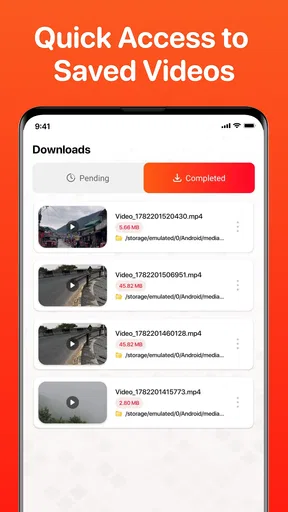
The most important part of using a downloader is not pressing the download button; it is knowing what should happen afterward. With MediaSave, I would first confirm that the item has actually been added to the app’s download activity or saved-media area. If I immediately leave the screen, I can easily mistake a pending task for a completed file.
A practical habit is to wait until the download visibly finishes before opening another app or locking the phone. This matters especially for larger videos. A file that looks ready in a notification may still be processing, and opening it too early can make the problem appear to be playback failure when the real issue is an incomplete save.
I also recommend testing with one short, non-essential file before attempting a long video. That small test answers several questions at once: whether the source is accepted, whether the phone has enough free storage, whether the file can be opened afterward, and whether MediaSave places it where I expect. It is a much better first step than filling the download queue with several files and then trying to diagnose all of them together.
Finding the saved file can be harder than saving it
Many people judge a downloader by whether the video appears in the phone’s gallery. That is not always the best expectation. A saved item may be visible inside the app while remaining separate from the gallery’s normal categories, depending on how the device indexes media. If I cannot see a clip in the gallery, I check MediaSave first and then use the phone’s file-management tools to look for the saved location.
This is one of the app’s practical trade-offs. A dedicated media area can keep downloads together, but it adds one more place to check. For someone who wants every video to appear automatically beside camera recordings, a system file manager or a gallery-centered workflow may feel more natural.
Playback problems do not always mean the download failed
A file can be present and still refuse to play smoothly. The cause may be the phone’s built-in player, an unsupported format, a damaged partial download, or a source that delivered an unusual version of the media. I would separate these possibilities instead of deleting the file immediately.
First, I would check whether the file size looks plausible compared with the length of the video. Next, I would try opening it through another compatible player already installed on the phone. If another player handles it normally, the saved file is probably fine and the limitation is related to playback support. If no player can open it, repeating the download is more sensible than repeatedly changing playback settings.
Why a lower rating matters to prospective users
MediaSave has an average rating of 3.4 from around 259 ratings, with one written review shown alongside that score. I would read that as a reason to keep expectations measured. The app has attracted over 500K installs, so it is not an obscure experiment, but popularity does not guarantee that every source, phone, or storage setup will behave identically.
For me, this profile suggests trying the app with a small personal workflow before depending on it for a large archive. It may suit someone who wants a simple utility, while users who need highly predictable batch handling, detailed transfer controls, or polished library management should compare it with more established file tools.
Setup checks that prevent avoidable failures
Before relying on a long transfer, I look at the phone’s available space, choose a stable connection, and test one short file from a source I’m permitted to save. I also check that the device meets the app’s Android requirement and that the app is up to date. These steps narrow down the cause early, so the next section can focus on what to do when trouble still occurs.
Start with storage, not the download button
Before using MediaSave for a large file, I check available phone storage. A video needs room not only for the final file but sometimes for temporary data while the download is being assembled. If storage is nearly full, a download can stop late, disappear from the expected list, or leave behind an unusable file.
The safest workflow is to remove old downloads first and keep a little spare capacity. I would also avoid starting several large downloads at once on a phone that is already low on space. A single controlled transfer is easier to monitor and makes it clearer whether the problem comes from storage, the source, or the connection.
Use a stable connection for the initial test
A weak connection can make a perfectly good downloader look unreliable. For the first trial, I would use a stable Wi-Fi connection and keep the phone in a place where the signal is consistent. If the same file works on a reliable network but fails repeatedly on mobile data, the app may not be the cause.
When a connection drops, I avoid tapping the download control repeatedly. That can create duplicate tasks or make it unclear which attempt produced the saved file. I cancel or remove the failed attempt if the interface allows it, then begin one clean retry after the connection is stable.
Check the source before blaming the app
A downloader can only work with media that the source makes available in a compatible way. A page may contain a video preview without exposing a directly downloadable file, or its access may depend on a sign-in, a permission, or a service rule. In those cases, repeated attempts inside MediaSave are unlikely to solve the underlying restriction.
I use the app for media I am allowed to save and avoid treating it as a way around protected or restricted distribution. That is both the responsible approach and the practical one: if the source blocks access, changing the filename or restarting the task will not turn an unavailable stream into a reliable local file.
Keep the first setup deliberately small
My recommended setup test has three parts. I choose one short video, save it, and play it from the app or the phone’s file tools. Then I close and reopen MediaSave to see whether the item remains easy to locate. Finally, I check whether the file can be shared or moved through the normal Android workflow.
This small routine reveals more than a long download can. It tells me whether the app fits my preferred storage habits, whether the phone recognizes the saved media, and whether I can retrieve the file without relying on memory. If any of those steps feels awkward, I would resolve that before saving a larger collection.
The version and device context matter
The current version is 1.0.3, and the minimum operating system is Android 7.0. That broad compatibility is helpful for older phones, but an older device may still have its own limits around storage, background activity, or media playback. I would keep the operating system updated where possible and restart the phone if downloads behave inconsistently after installation.
It is also worth checking that the app itself is current before troubleshooting deeply. A simple update can resolve an installation mismatch or a problem caused by an earlier build. I would not assume that every issue requires advanced settings; basic device maintenance often has the highest payoff.
Recovering a workflow when a download goes wrong
When a transfer goes wrong, I try to change only one thing at a time: connection, storage, source, or playback. That makes it easier to tell whether a retry is worthwhile and avoids filling the phone with duplicate or partial files. I’ll outline a practical recovery order next, including when it is better to stop retrying and test the saved file elsewhere.
When the task stops halfway
If a download stalls, I first note whether the progress is genuinely moving. A brief pause may be normal, while a task that remains unchanged for a long period is more likely stuck. I then check the network and available storage before restarting anything.
If the app offers a way to remove the incomplete item, I prefer a clean restart rather than creating several copies. I also keep the screen available during the retry when practical, because some phones restrict background activity aggressively. This is not a MediaSave-specific guarantee; it is a sensible Android troubleshooting step when a transfer stops after the app is no longer visible.
When the file appears twice
Duplicate files usually come from repeated taps after a slow response. I avoid renaming or moving both copies immediately. Instead, I compare their sizes and playback behavior, keep the complete version, and remove the unusable duplicate only after confirming which one works.
For future downloads, I wait for the interface to respond before pressing again. If the app seems slow, I give the task time and check its status rather than assuming the first tap failed. This simple change makes the library easier to manage and prevents storage from being consumed by accidental repeats.
When the video is missing from the gallery
I would not treat gallery visibility as the only sign of success. I check the app’s own list, then browse the phone’s storage using its file tools. If the file is present, I can usually move or share it from there, provided the device recognizes its format.
If the item is visible in MediaSave but not in the gallery, restarting the phone or allowing the system time to index new media can help. If it still does not appear, I would use the file directly rather than repeatedly downloading the same video. The important question is whether the file opens and can be managed, not whether one particular gallery view displays it.
When a video plays without sound or with errors
Playback is a separate stage from downloading. I test the file in another player if one is available, and I compare the behavior with a different saved video. If only one file fails, the source or that particular download is the likely focus. If every file fails, I look at the phone’s playback support and the app’s handling of saved media.
This comparison is a useful non-obvious shortcut: changing one variable at a time is faster than reinstalling immediately. A second small test file can show whether the problem follows the app or follows the original source.
When paid options appear
MediaSave is free to install, but it includes optional purchases priced from $0.99 to $19.99 per item. I would use the free experience long enough to understand the basic workflow before buying anything. The key question is not simply whether a paid option exists, but whether it addresses a limitation I actually encounter.
I would also review the purchase screen carefully and avoid assuming that a payment changes every part of the app. A downloader is only worth paying for if it saves me meaningful time or removes a specific obstacle in my own routine. For occasional downloads, the free starting point may be enough; for frequent use, I would judge the value after several successful and unsuccessful attempts rather than after the first session.
When MediaSave is not the cause
A download failure can look like an app problem even when the real cause is a blocked source, weak network, full storage, or playback incompatibility. I use a small comparison test to separate those possibilities before reinstalling or repeating the same task. The next section helps identify when changing tools—or simply changing the test—is the more sensible response.
Network, source, and device issues look deceptively similar
A failed download can come from several layers. The network may be unstable, the source may restrict access, the phone may be full, or the file may be incompatible with the player. Because all four situations can produce a vague “it did not work” experience, I troubleshoot them separately.
My order is simple: test the connection, confirm storage, try a small permitted source, and check the resulting file with another player. If the small test works, the original source is more likely to be the variable. If every test fails, I look at the device and app setup before concluding that the source is responsible.
Who should consider a different tool
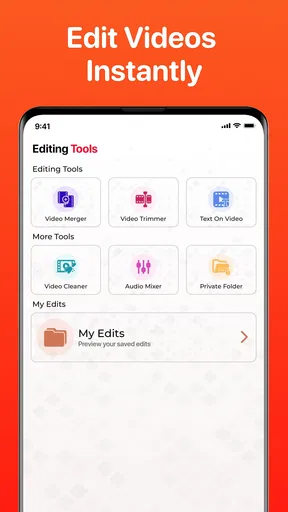
I would skip MediaSave if I needed a professional editing timeline, trimming controls, captions, color work, or detailed export settings. Its position in the media-player and editor category does not make it a full production application. Someone creating finished videos will be better served by a dedicated editor.
I would also look elsewhere if my priority were automatic synchronization across several devices, a sophisticated tagging system, or a large archive with advanced search. A standard cloud-storage workflow or a stronger file manager may be more appropriate for those needs. MediaSave makes more sense when the goal is local saving and basic management on one Android device.
Who gets the most value from it
The best match is someone who wants a focused way to save permitted media without learning a complicated interface. It can be useful for keeping reference clips offline, collecting videos for a commute, or separating downloaded material from camera footage. The app’s free entry point also makes it easy to test without making a financial commitment first.
It is less attractive for a person who rarely downloads anything, since the phone’s existing browser and file tools may already be sufficient. It is also not the right choice for someone who expects every source to work, every file to appear automatically in the gallery, or every video to play identically on every device.
A realistic everyday workflow
Imagine I want to keep a short tutorial available during a train journey. I would test the link at home on Wi-Fi, save one copy through MediaSave, open the finished file, and confirm that the sound and picture work. I would then locate the file through the app or Android storage tools and delete older downloads that I no longer need.
That workflow highlights the app’s practical strength: it gives a clear local destination for saved media. It also exposes the main responsibility placed on the user: checking completion, storage, and playback before leaving home. For offline use, that final check is more important than the download button itself.
My practical verdict after using it
MediaSave is a reasonable utility for Android users who want a simple, local media-downloading routine. I like the low barrier to entry, the broad minimum Android requirement, and the fact that its purpose is easy to understand. It does not ask me to approach the task like a video editor; it is primarily about getting media onto the device and keeping track of it.
My recommendation comes with a clear condition: treat it as a focused helper, not an all-purpose media solution. Start with a small permitted file, verify where it goes, check playback, and keep storage under control. Those steps prevent most of the confusion that makes downloader apps feel unreliable.
The rating of 3.4 and the limited written feedback encourage a cautious trial rather than an unquestioning recommendation. I would install it for occasional downloads and evaluate it against my own sources and phone. If it handles those reliably, it can earn a place in my toolkit. If I need advanced organization, guaranteed compatibility, or editing controls, I would move to a more specialized alternative.
Overall, HD Video Downloader: MediaSave is most convincing when I keep the job narrow: save media I am allowed to keep, confirm that the file is complete, and manage it locally afterward. Its real strength is simplicity, while its main trade-off is that successful use still depends on the source, the device, and a little hands-on checking.
Verdict
Strengths of HD Video Downloader: MediaSave
- Supports downloading videos in HD quality when the source allows it.
- Simple interface makes saving media quick for new users.
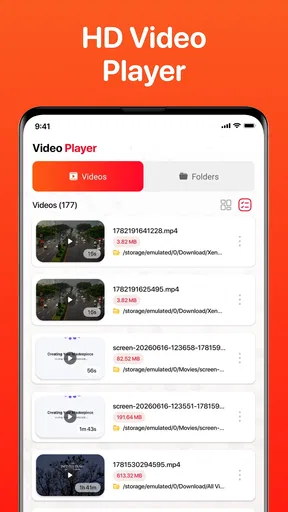
- Built-in media player lets you preview files before sharing.
- Downloaded content can be accessed offline without mobile data.
- Useful sharing options make it easy to send saved videos to other apps.
Limitations of HD Video Downloader: MediaSave
- Download availability depends on the platform and video source.
- Some formats or resolutions may not be supported consistently.
- Ads can interrupt navigation and make the interface feel cluttered.
- Large HD files can quickly consume storage space and data.
- Downloading copyrighted content may violate platform rules or local laws.
Similar Picks in This Category
View All
Google TV
Google LLC3.9

iTunes
Apple4.7

YouTube
Google LLC3.8

MX Player
Amazon Mobile LLC4.2

CapCut - Video Editor
Bytedance Pte. Ltd.3.5

PLAYit-All in One Video Player
PLAYIT TECHNOLOGY PTE. LTD.4.5
Frequently Asked Questions
What is HD Video Downloader: MediaSave used for?
HD Video Downloader: MediaSave is designed to help users find and save supported online videos for offline viewing on a mobile device. Its main appeal is convenient access when you have limited internet connectivity or want to avoid repeated streaming. Before downloading, users should confirm that the source is supported and that saving the content complies with the platform’s terms and the copyright holder’s permissions.
Can HD Video Downloader: MediaSave download videos in HD quality?
The app is promoted as an HD video downloader, but the final quality depends on the original video, the available formats, the website or service hosting it, and your device’s storage and connection speed. Not every video will be available in high definition. It is also worth checking the selected resolution before starting a download, since higher-quality files require considerably more storage space and may take longer to save.
Is HD Video Downloader: MediaSave safe to install and use?
As with any downloader, safety depends on installing the application from a legitimate store, keeping it updated, and reviewing the permissions it requests. Avoid unofficial modified versions or suspicious download links. Users should also be careful when opening unfamiliar websites inside any built-in browser and should not provide passwords or payment details unless they are certain the service is trustworthy. Store reviews and the developer’s privacy information are useful checks before installation.
Where are downloaded videos stored, and can they be watched offline?
Downloaded files are generally intended for offline playback, although their exact location and accessibility can vary according to the app version, operating system, and selected storage settings. Some files may remain inside the application rather than appearing in the phone’s standard gallery or file manager. Before downloading many videos, check the app’s storage options, confirm available space, and test one file to understand how playback works without an internet connection.
Is it legal to download videos with MediaSave?
The legality of downloading depends on the video, the platform hosting it, your location, and the permissions granted by the content owner. Saving videos that you created yourself, that are explicitly offered for download, or that are released under suitable licenses is generally safer. Downloading copyrighted material without authorization may violate copyright law or a service’s terms of use, so users should always obtain permission and avoid redistributing saved content.
